
Atlanta Harvest CSA Sign-up Guide
Continue your CSA on Local Line
Follow these steps to select your share, pickup location, subscription frequency, and payment method.
Before you begin
Use the same email address connected to your previous Atlanta Harvest CSA membership.
Choose Subscription, not One Time Purchase, when selecting your box.
Have your preferred payment method ready. Saved Squarespace card information does not transfer.
Step 1 of 12
Open the Atlanta Harvest store
Visit the storefont and choose Log In or Create an account.
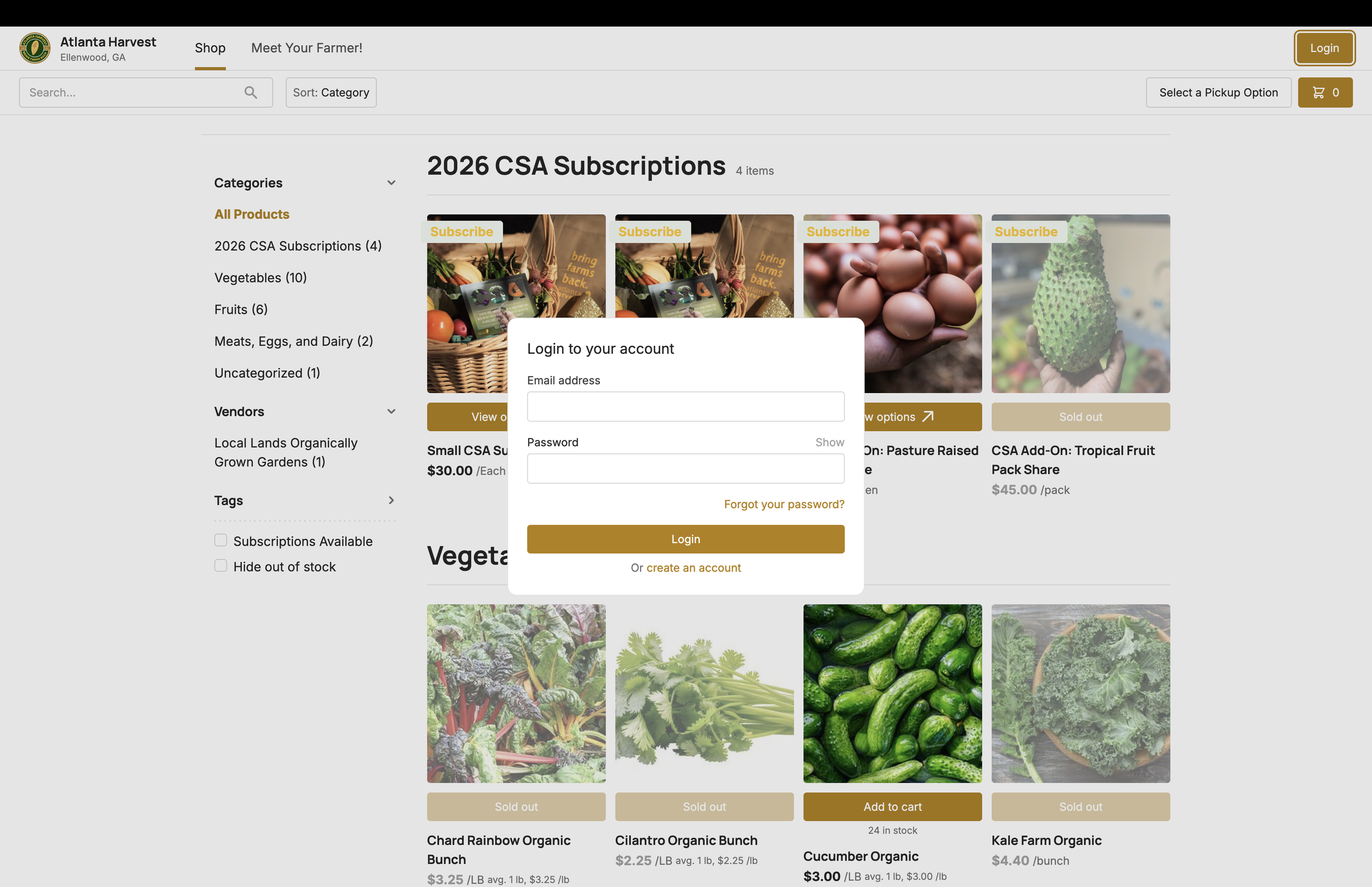
Go to the Atlanta Harvest Local Line storefront using the link below. If you already have a Local Line password, log in. Otherwise, select Create an account.
Good to know: Storefront: atlanta-harvest.localline.ca/shop
Step 2 of 12
Create your Local Line account
Returning CSA members should use the same email address used for Atlanta Harvest before.
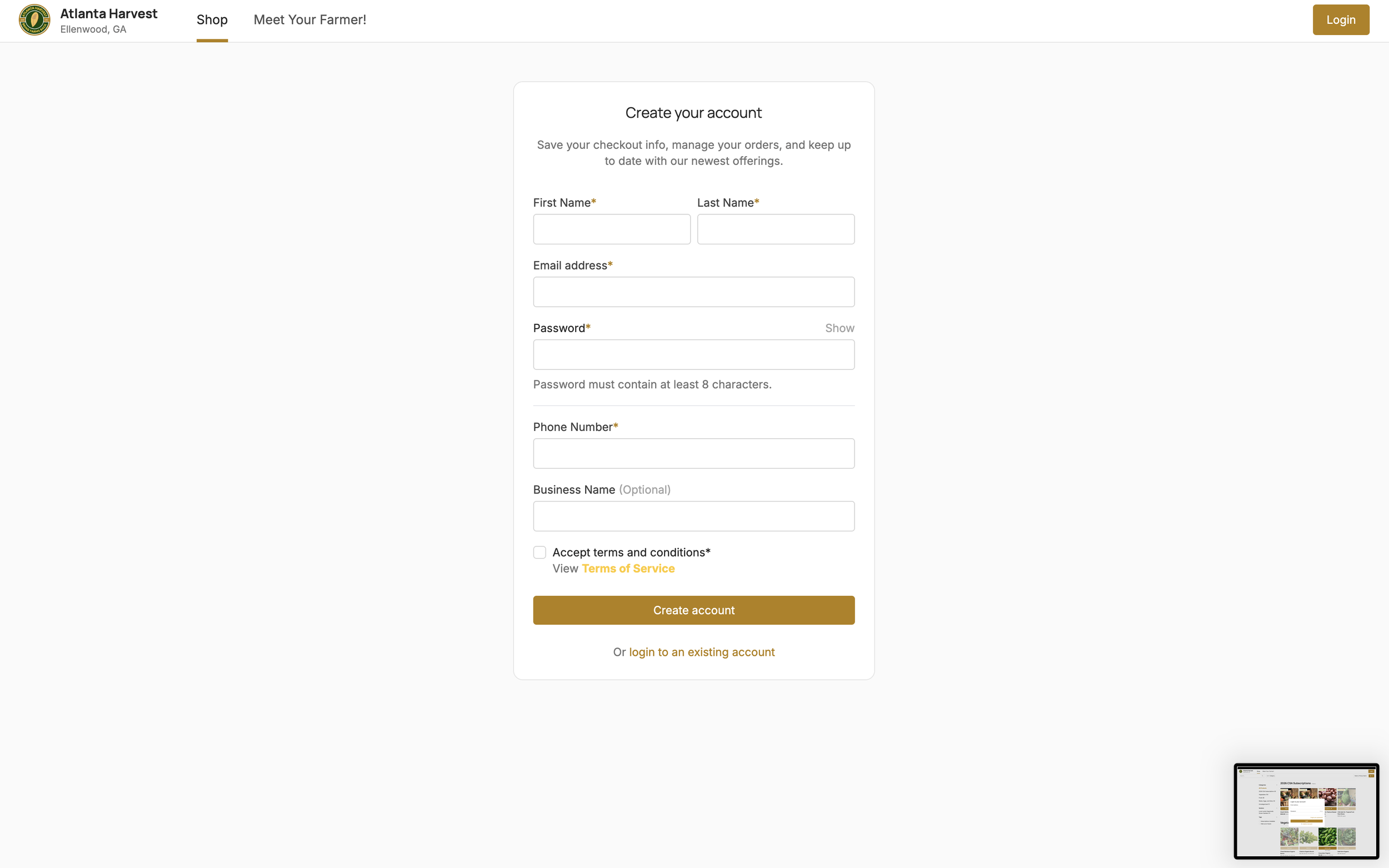
Enter your name, email address, password, and phone number. Accept the terms and conditions, then select Create account. Your saved Squarespace payment information does not transfer, so you will enter a payment method during checkout.
Good to know: Use an email address you check regularly so you receive pickup and subscription messages.
Step 3 of 12
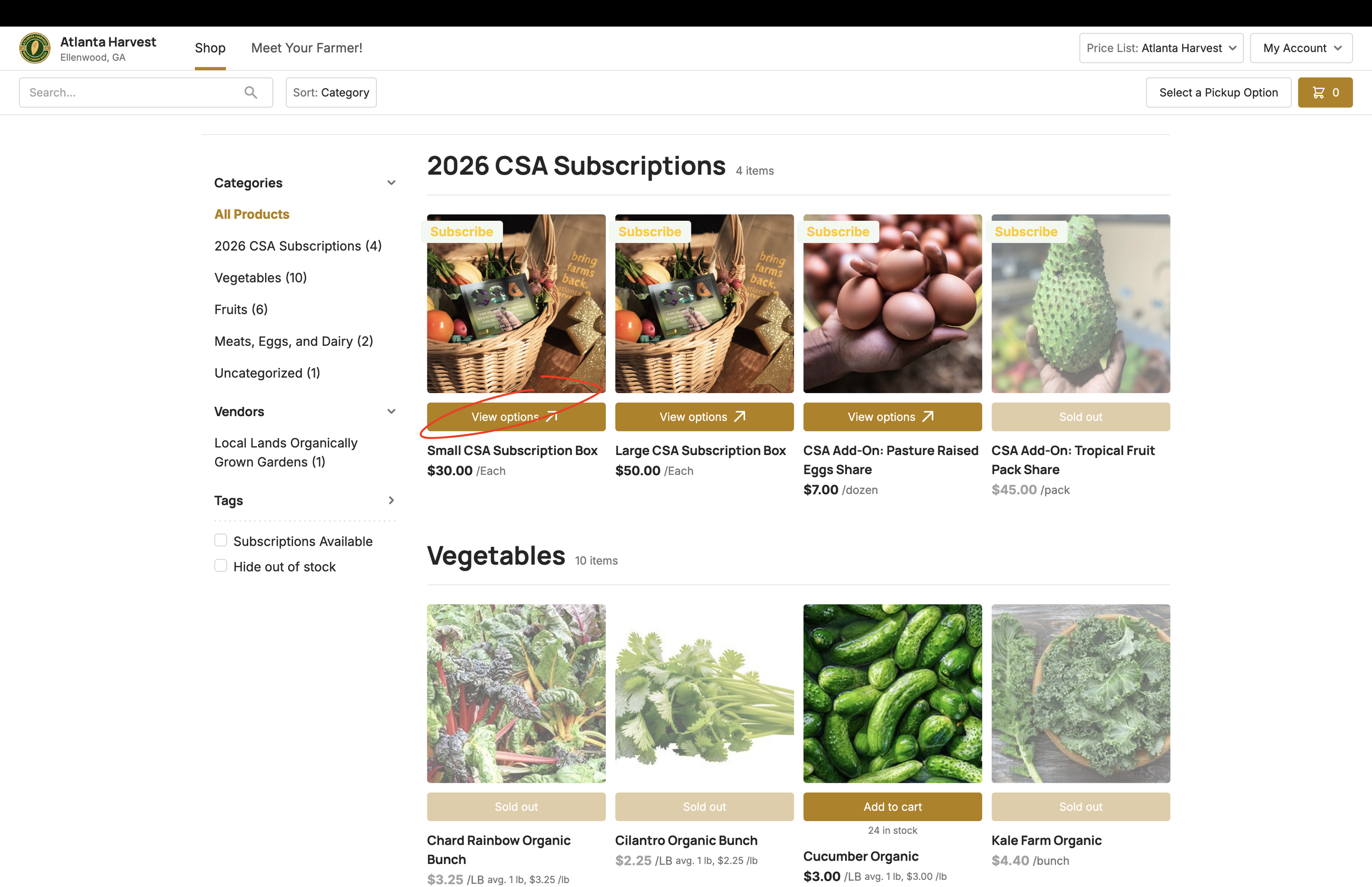
Choose your CSA box
Select the Small CSA Subscription Box or Large CSA Subscription Box.
Enter your name, email address, password, and phone number. Accept the terms and conditions, then select Create account. Your saved Squarespace payment information does not transfer, so you will enter a payment method during checkout.
Good to know: Use an email address you check regularly so you receive pickup and subscription messages.
Step 4 of 12
Select Subscription - not One Time Purchase
This is the most important selection on the box page.
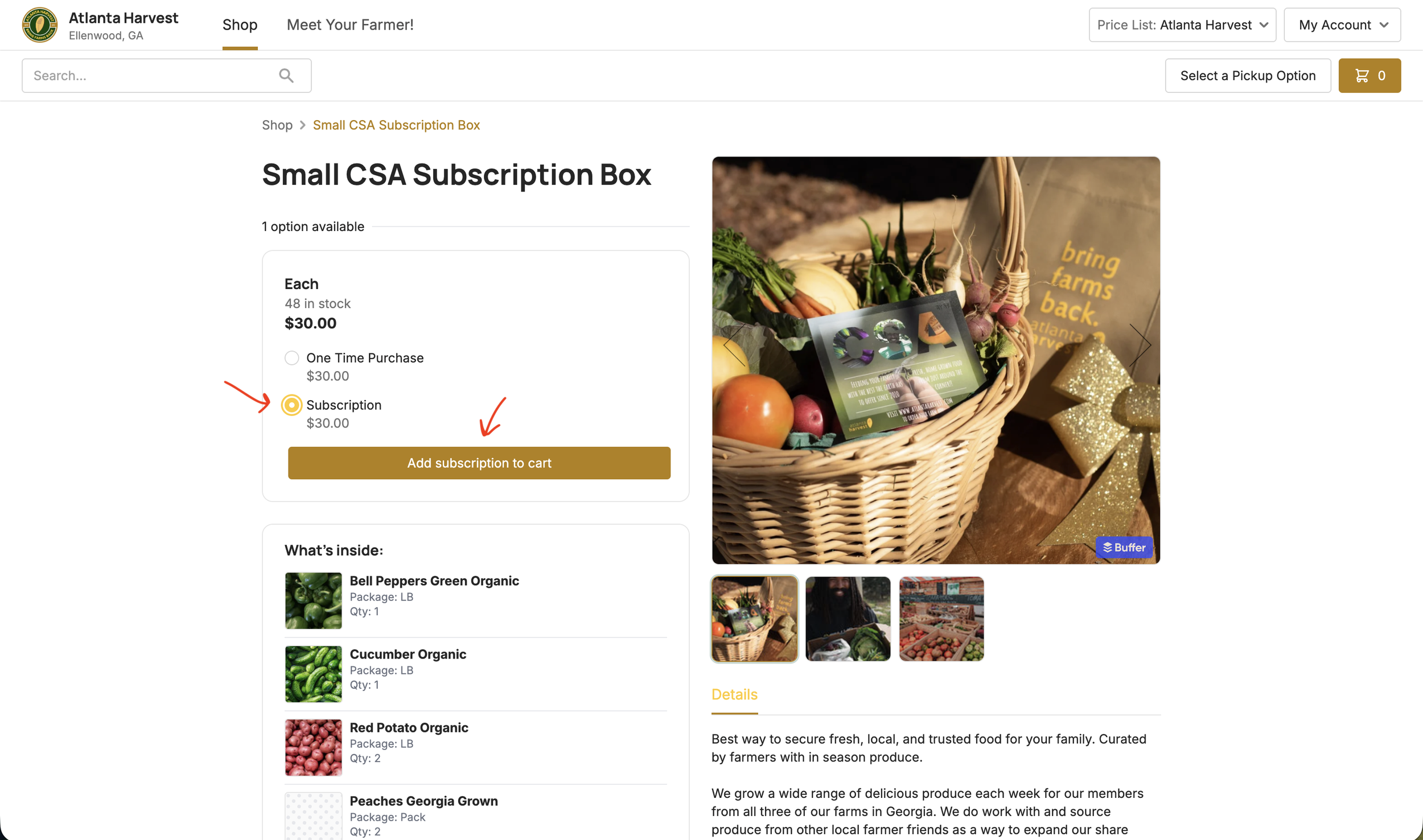
Review the current week's box contents, then select Subscription and choose Add to cart. Do not select One Time Purchase if you want an ongoing CSA membership. You will choose weekly or every-two-weeks frequency later during checkout.
Good to know: Box contents change through the season according to what is being harvested.
Step 5 of 12
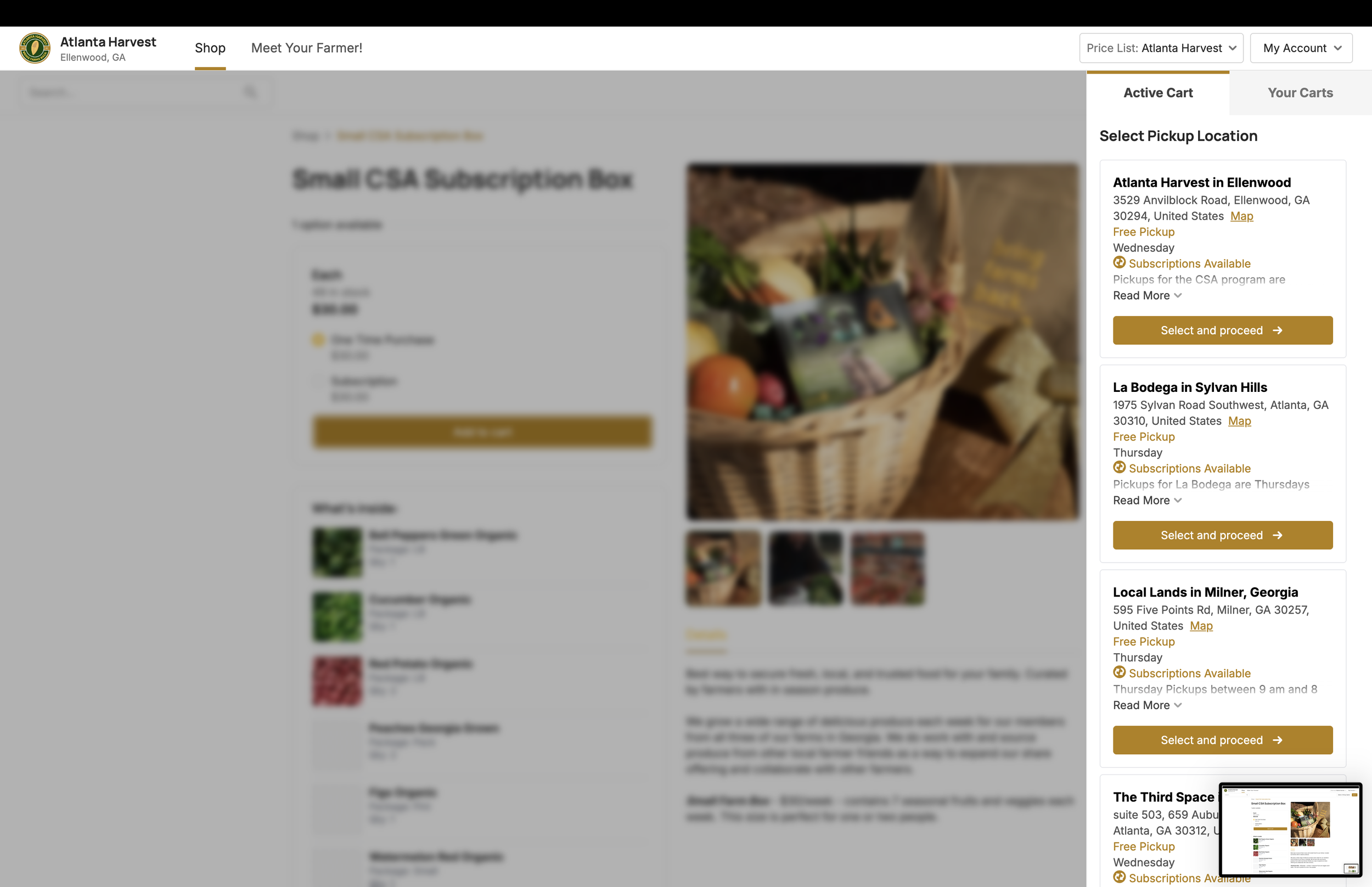
Choose your pickup location
Select the pickup site that is most convenient for you.
Enter your name, email address, password, and phone number. Accept the terms and conditions, then select Create account. Your saved Squarespace payment information does not transfer, so you will enter a payment method during checkout.
Good to know: Use an email address you check regularly so you receive pickup and subscription messages.
Step 6 of 12
Choose your first pickup date
Select the highlighted next available date for your chosen location.
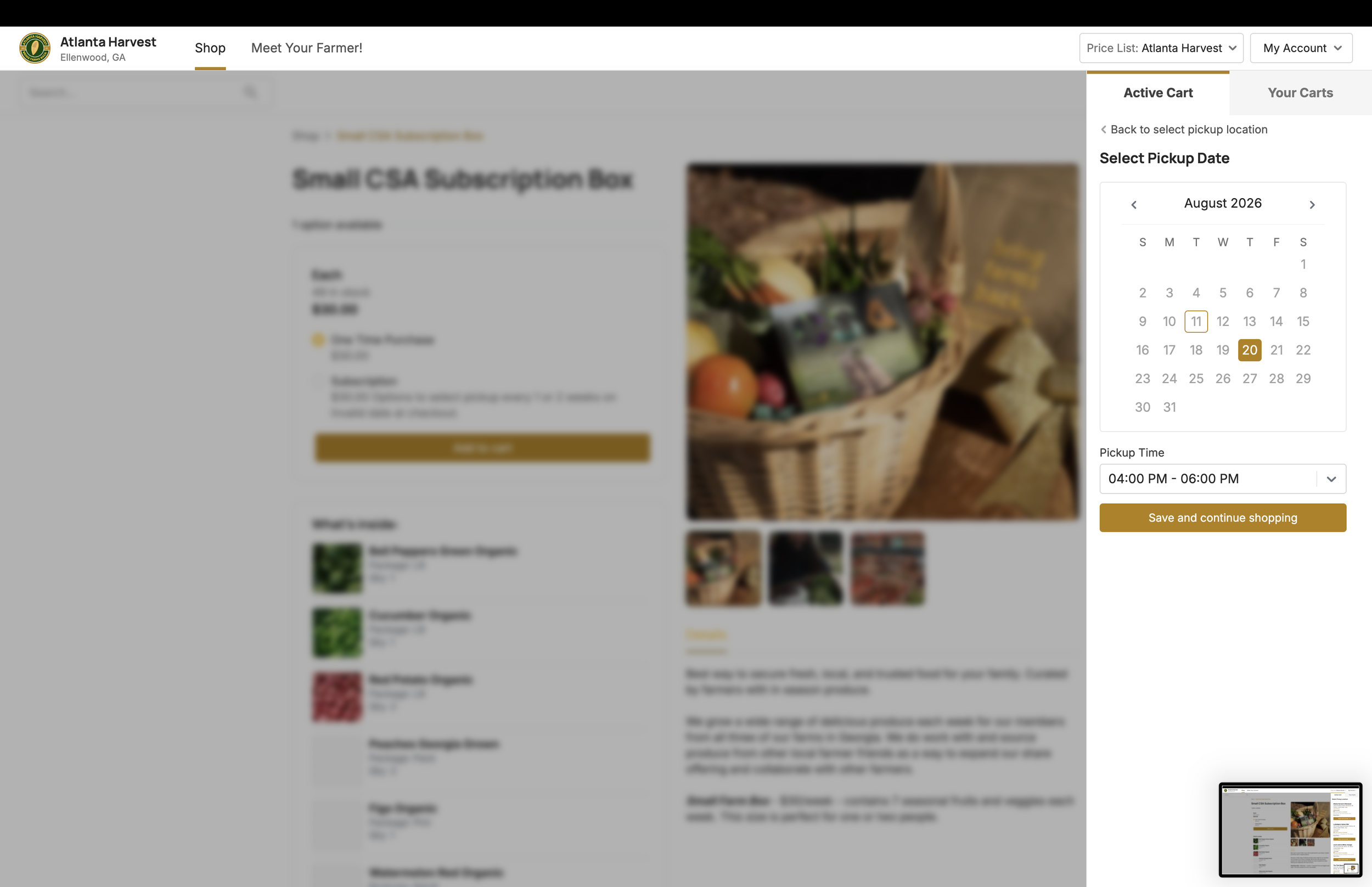
Confirm the pickup date and time shown, then select Save and continue shopping. This date establishes when your first CSA box will be ready.
Good to know: Only available pickup dates can be selected.
Step 7 of 12
Review your selections
Confirm the share, subscription status, pickup location, date, and time.
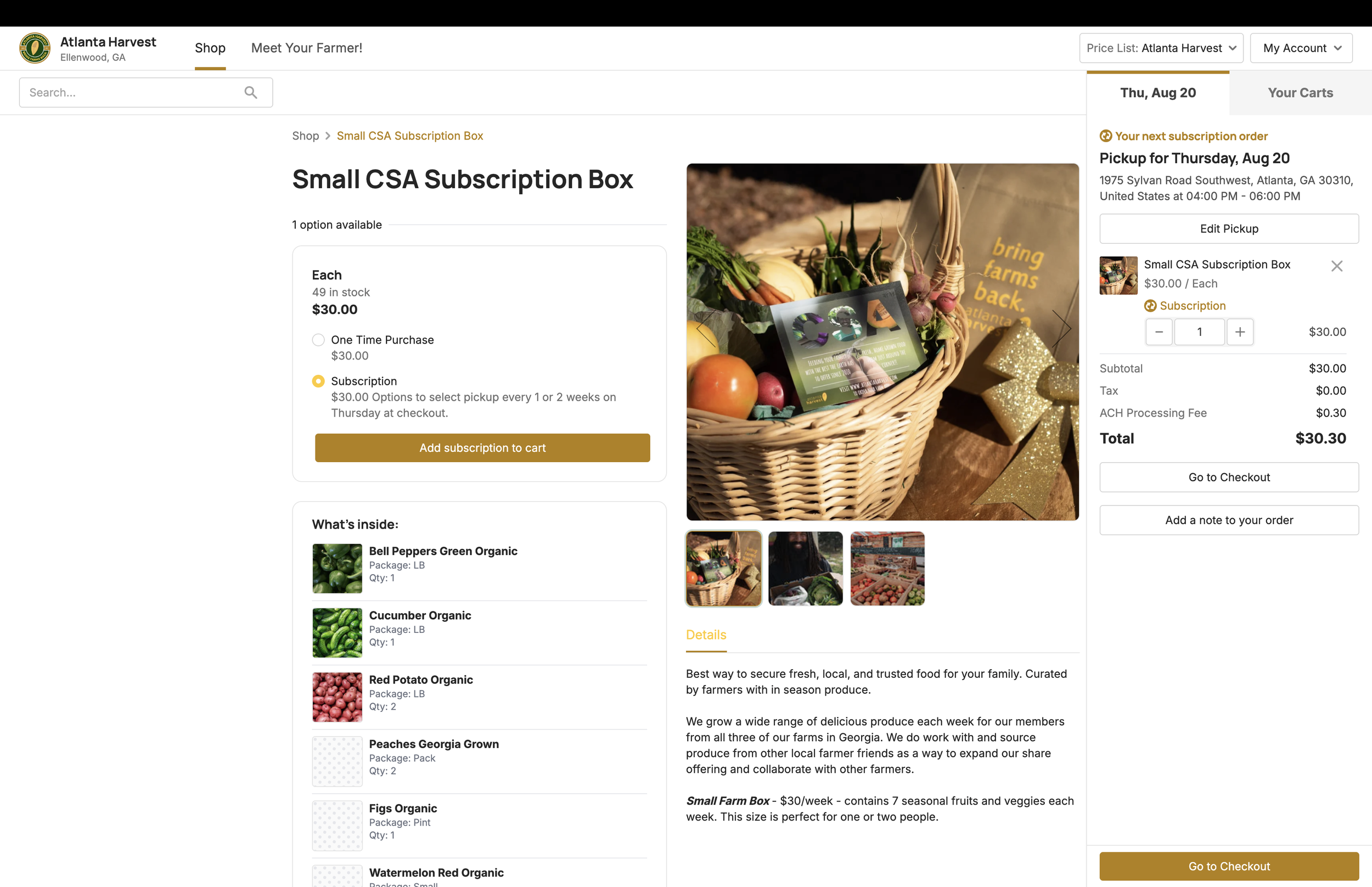
Before checkout, verify that Subscription is selected and that the CSA share size and pickup details are correct. Use Edit Pickup if you need to make a change, then choose Go to Checkout.
Good to know: Your weekly or every-two-weeks frequency is selected on the next checkout screen.
Step 8 of 12
Complete your checkout information
Review your contact information and order summary.
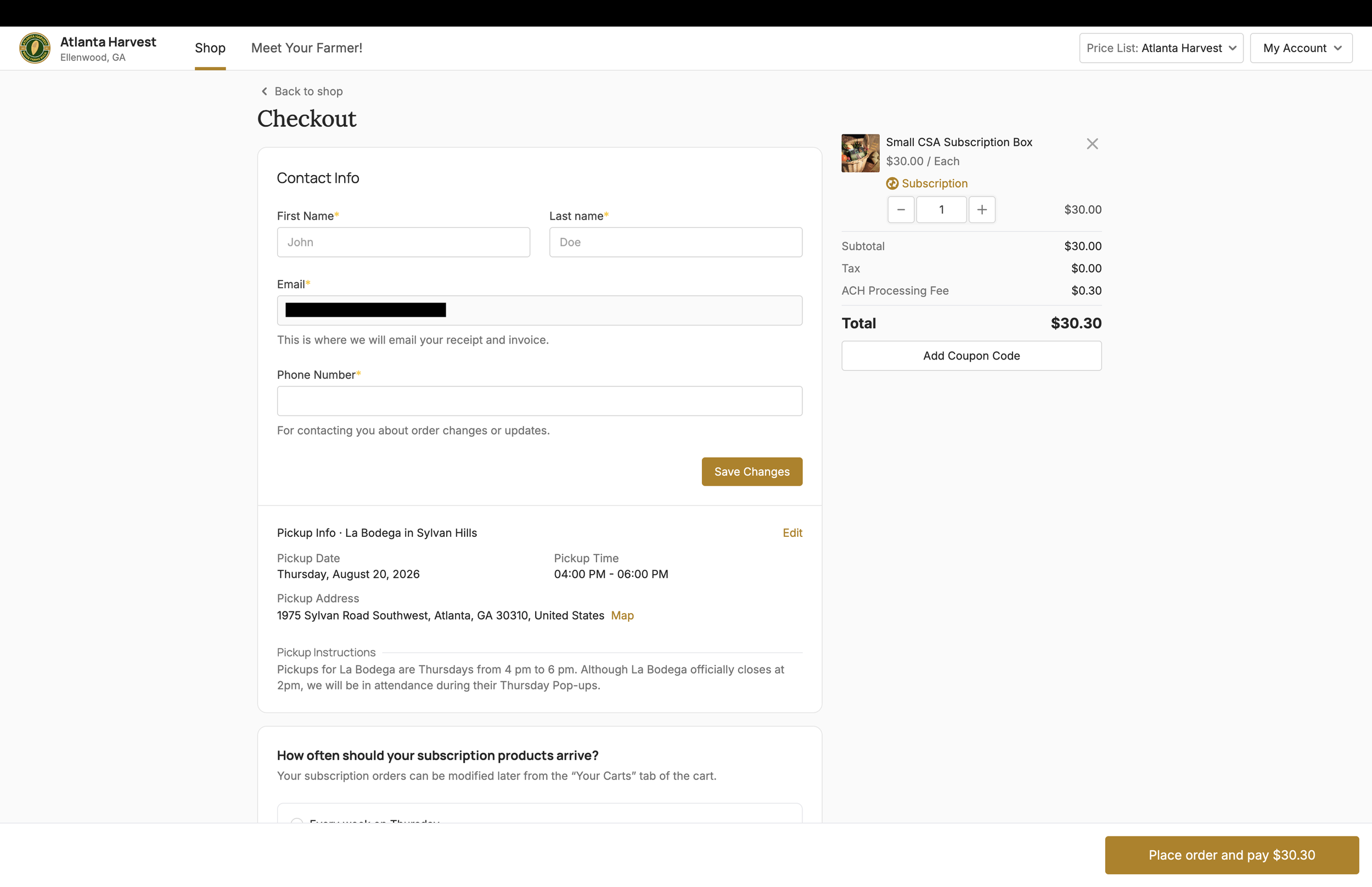
Confirm your name, email address, phone number, box size, pickup location, first pickup date, pickup time, and total. Continue down the page to choose the subscription frequency and payment method.
Good to know: Make sure your email and phone number are accurate before placing the order.
Step 9 of 12
Choose frequency and payment method
Choose Every week or Every 2 weeks, then select how you will pay. Harvest before.
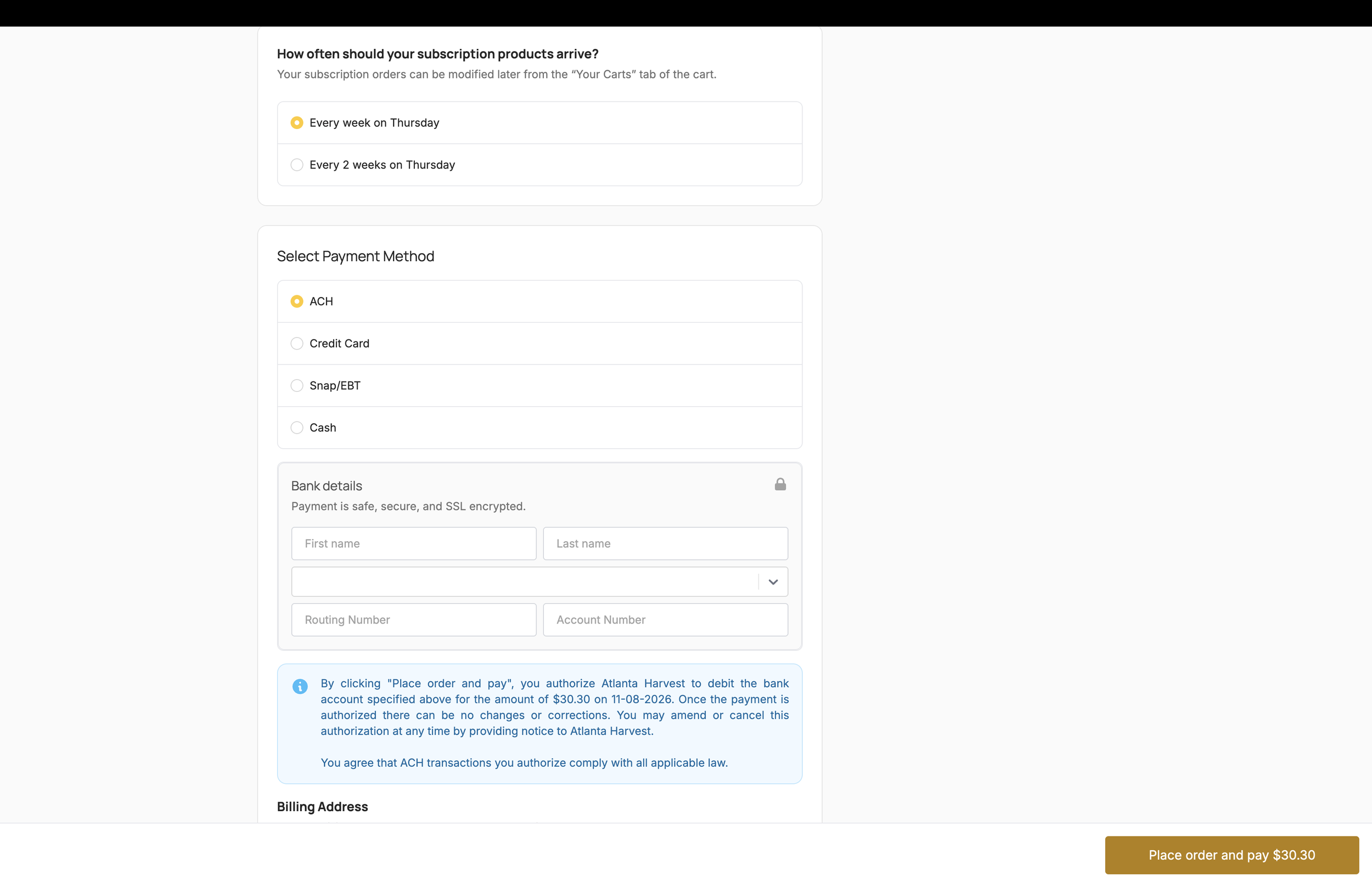
Select ACH, credit card, SNAP/EBT, or cash, as available. Each payment option has its own directions. Read and complete every instruction shown for your chosen method before selecting Place order and pay.
Important: SNAP/EBT customers: carefully follow the SNAP/EBT instructions on the checkout page. Completing those steps is necessary for Atlanta Harvest to receive and prepare your order.
Step 10 of 12
Check your order confirmation email
Your confirmation email shows that the first CSA order was submitted successfully.
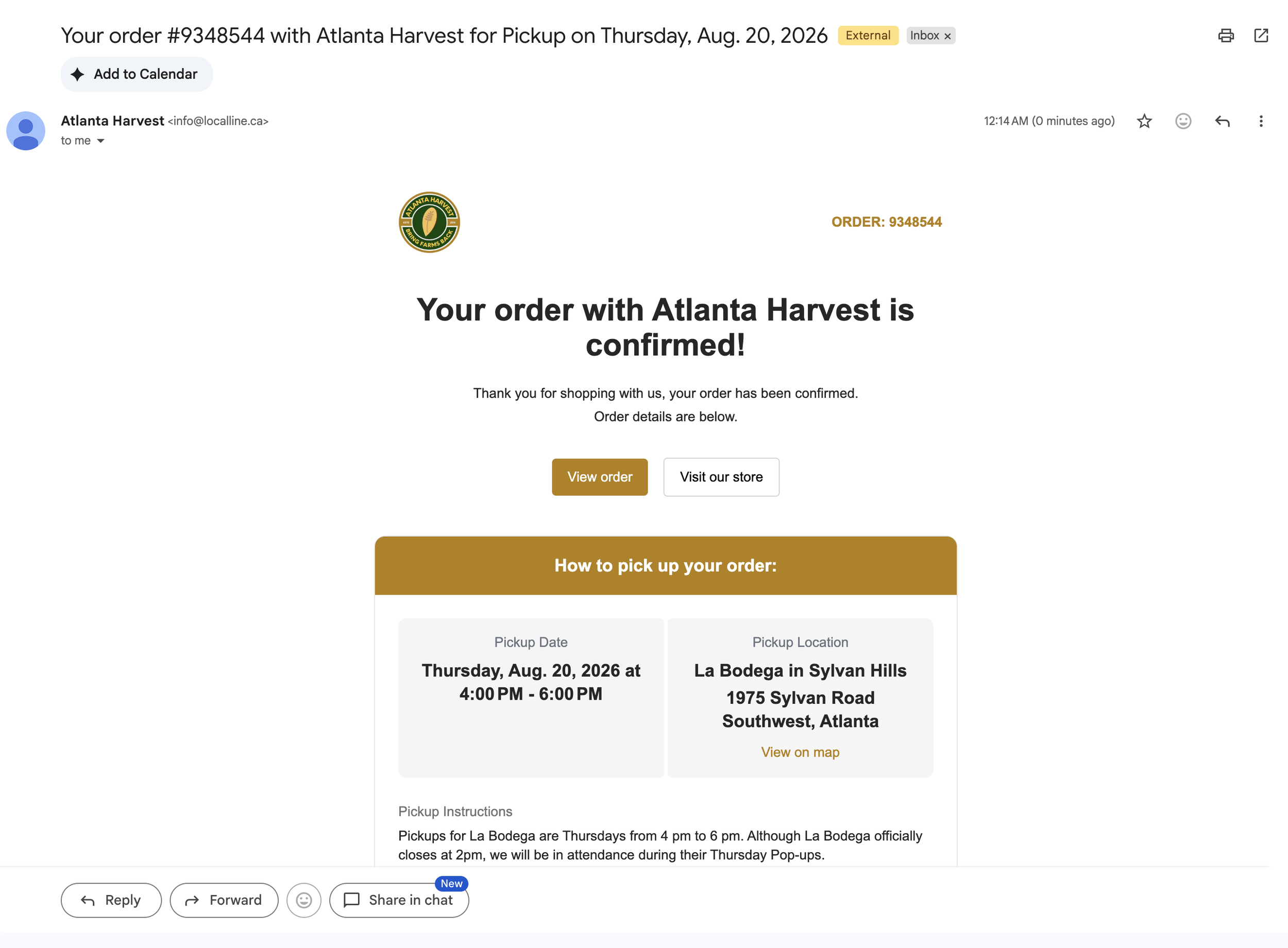
Review the order number, first pickup date and time, pickup location, address, and pickup instructions. Select View order if you want to see the complete order details.
Good to know: If you do not see the email, check your spam or promotions folder.
Step 11 of 12
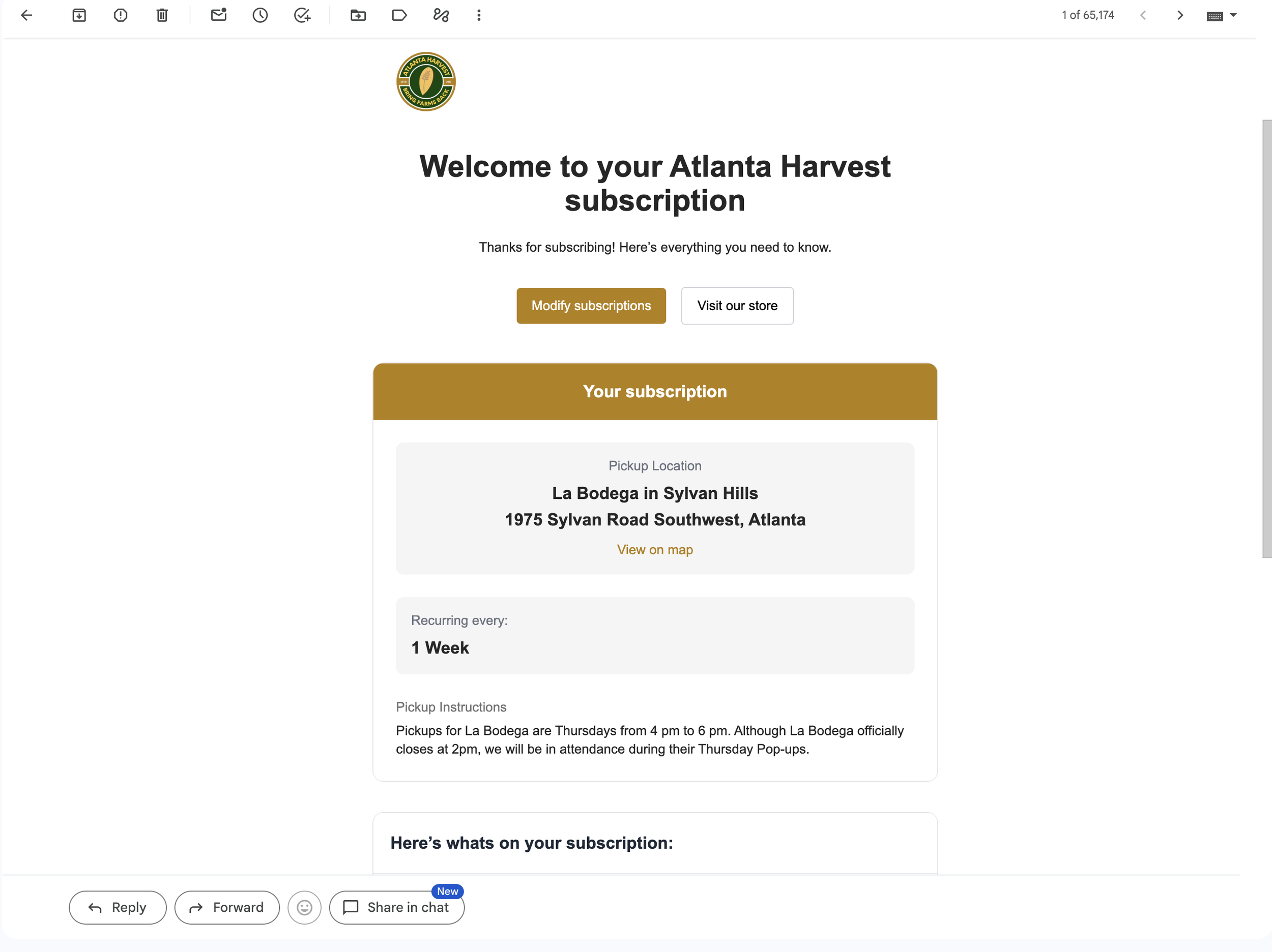
Save your subscription welcome email
This email is your ongoing reference for the CSA membership.
Enter your name, email address, password, and phone number. Accept the terms and conditions, then select Create account. Your saved Squarespace payment information does not transfer, so you will enter a payment method during checkout.
Good to know: Use an email address you check regularly so you receive pickup and subscription messages.
Step 12 of 12
Manage your CSA in My Account
Use the Subscriptions tab to review your active plan and upcoming orders.
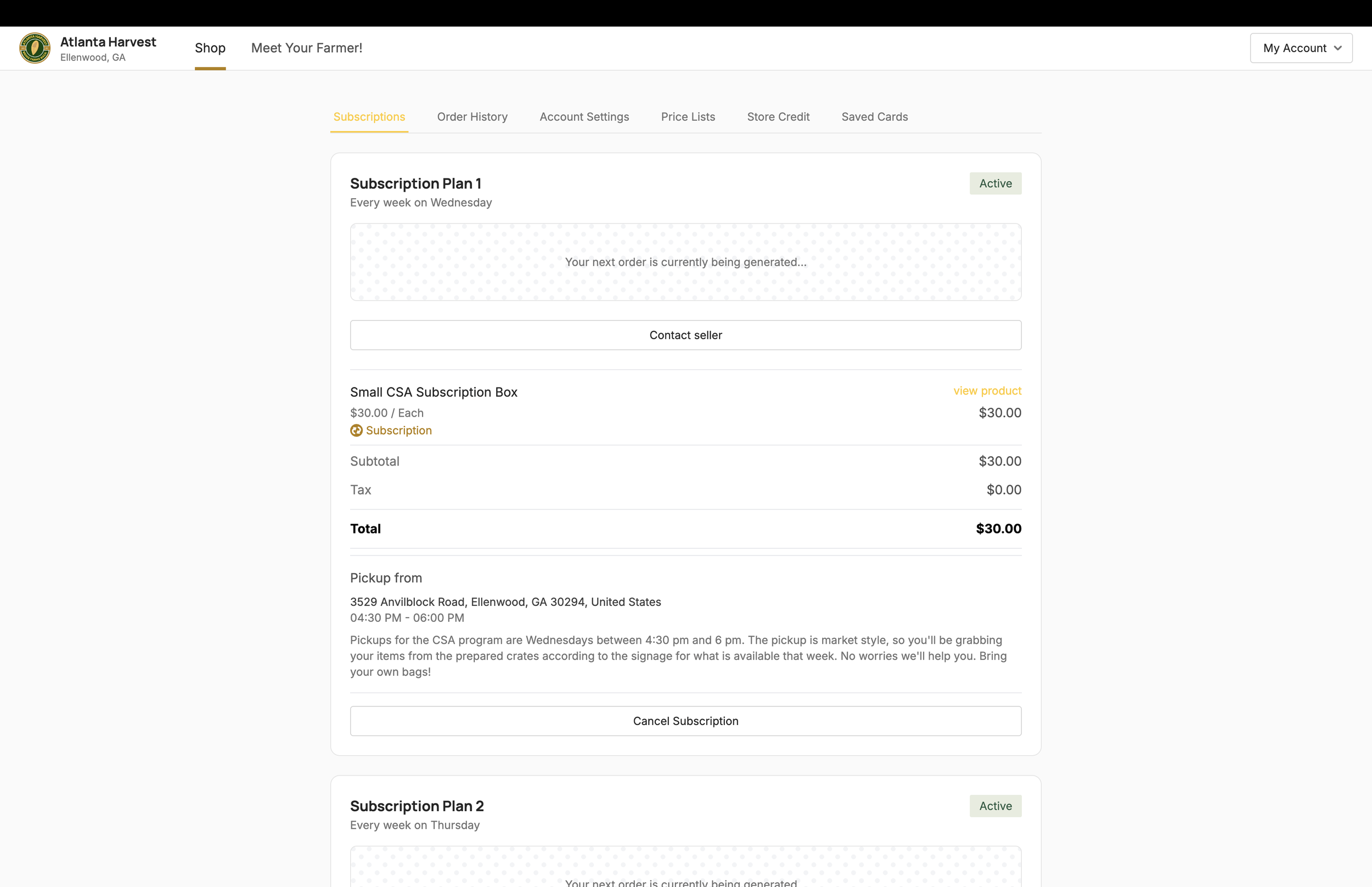
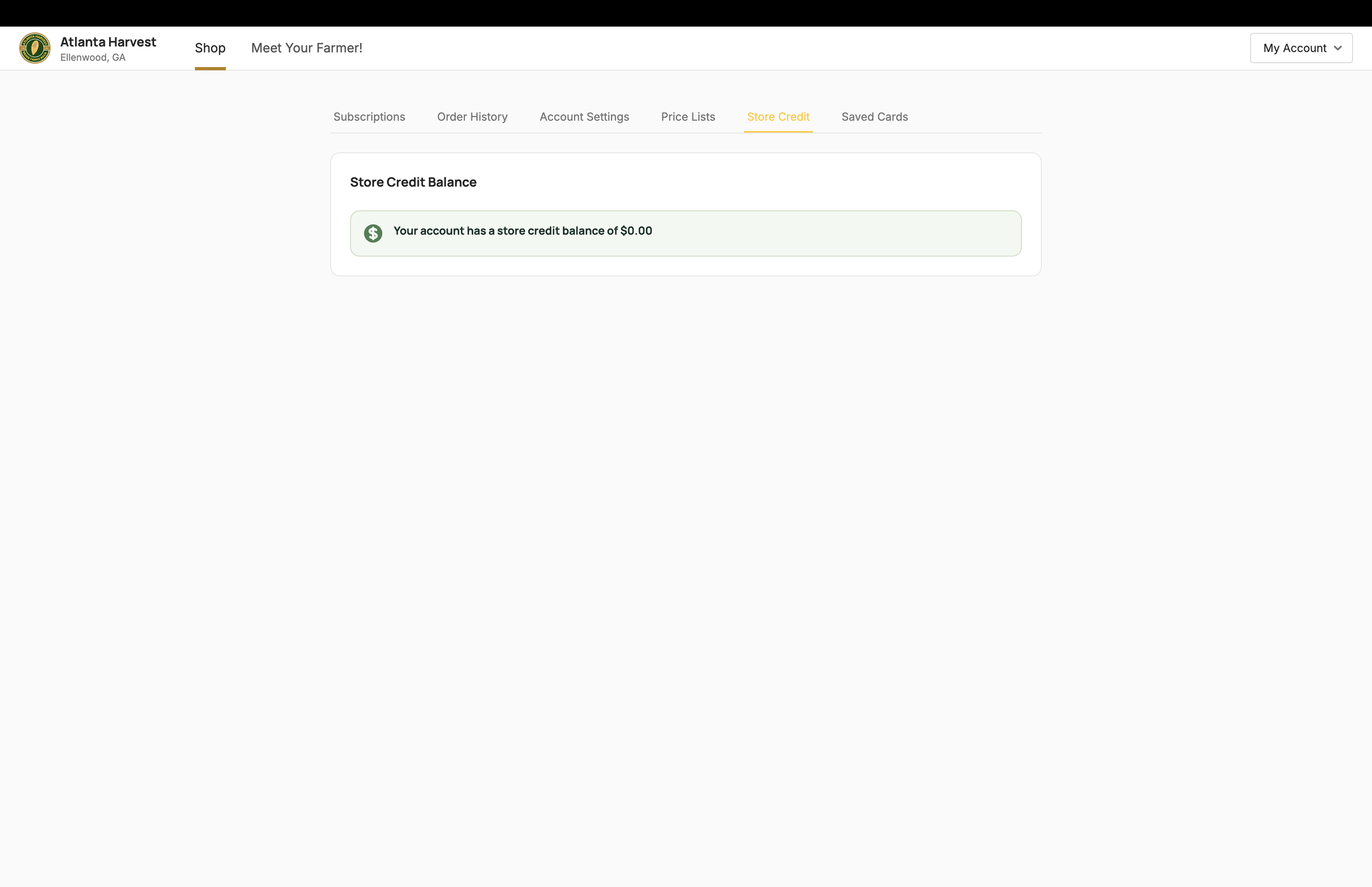
Go to My Account, then Subscriptions. This area shows the active plan, frequency, share size, price, pickup location, pickup time, and instructions. Other tabs let you review order history, update account settings, check store credit, and manage saved cards.
Important: Skipping a box: the Skip Order option will not appear immediately. It becomes available after the next order is generated closer to the pickup date. Once it appears, choose Skip Order before the order-edit cutoff. Contact Atlanta Harvest if you need to pause for several weeks.